Task Bar of Ragnalis Tools
Calculators for stacking, party slots, and optional DLC purchases.
Why this wiki ships tools
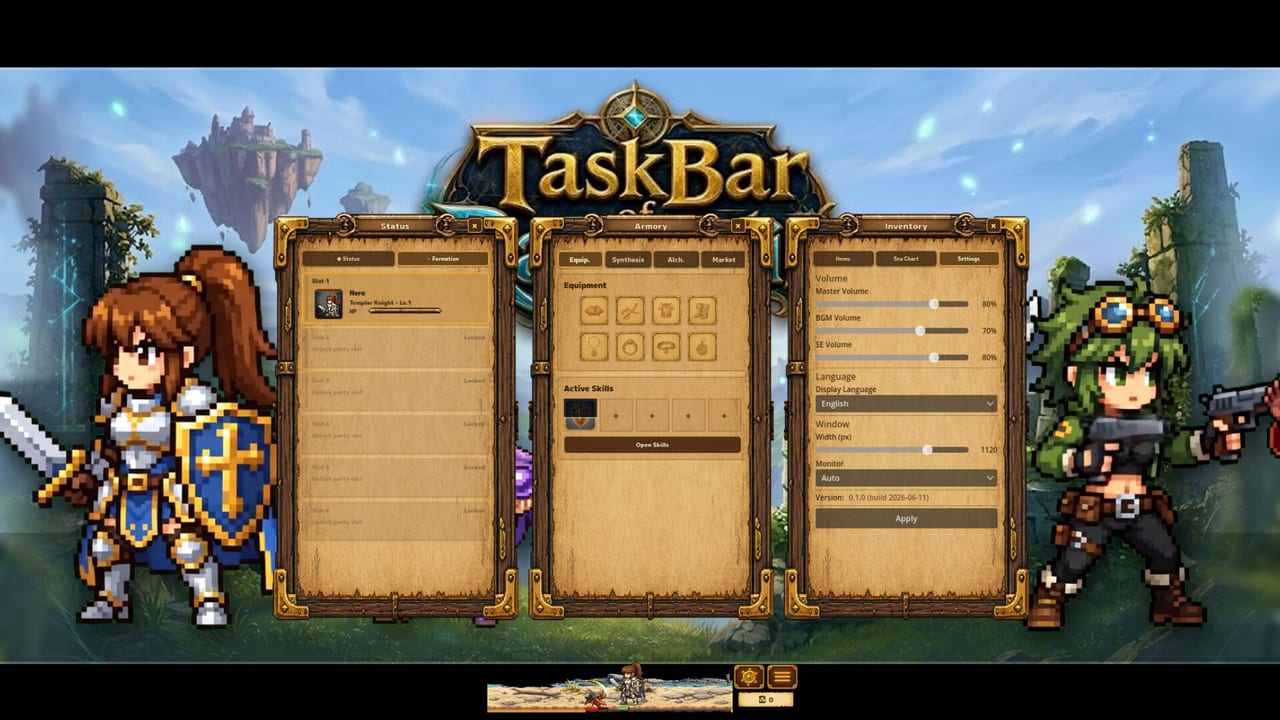
Task Bar of Ragnalis looks light until you stare at an inventory full of near-complete stacks, three empty party seats, and a Steam DLC shelf that overlaps itself. Guides explain the rules. Tools help you apply them without napkin math mid-check-in.
This hub points to three interactive helpers built for launch-era questions: how many copies you still need, which three classes to field, and whether a DLC pack double-buys something you already own. Use them after you understand the basics in How to Play and How to Stack Items.
Stack Calculator
Open the Stack Calculator when you know how many copies you hold and how many tier-ups you want. The advertised loop is simple—nine copies of the same item feed a tier-up—but multi-tier plans get messy fast. The calculator turns current count and target tiers into a clear “copies still needed” number so you stop selling the eighth sword by accident.
Pair the tool with Random Skills Explained before you commit a painful climb into a bad roll. Stacking is progression fuel; stacking the wrong piece is still a waste of AFK hours.
Party Planner
The Party Planner helps you sketch a three-slot lineup around Gunner, Pirate (DLC), Overlord (DLC), or a flex seat you have not unlocked yet. Idle parties fail when every hero wants the same loot or when nobody can clear early waves. Use the planner after you read Party Builds and the Classes hub, then cross-check soft walls in Beat Early Waves.
Treat the result as a note pad, not a ranked esports draft. Launch reception was rough, so party value can shift after balance patches—re-run the planner when a new class or skill pool changes your clearer.
DLC Cost Checker
Steam lists Pirate, Overlord, a Pirate & Overlord pack, storage expansion, and a complete pack. Prices move with regional sales, so this wiki never hard-codes a wallet total. The DLC Cost Checker focuses on overlap risk: which boxes you tick together and whether a bundle already includes a class you selected alone.
Read DLC Overview and Pirate & Overlord first. Buy storage only after you know which item lines deserve space—see Storage Expansion and the stacking guide.
How tools connect to the rest of the wiki
- New to the desktop loop? Start with How to Play and First Look.
- Stuck on progression? Use Early Progression before you blame the calculator.
- Choosing classes? Compare Gunner, the Tier List, and DLC seats.
- Still deciding time investment? Read the Honest Review and Worth Playing F2P.
- Setup friction? Fix readability with Taskbar Setup and System Requirements.
How to use these pages well
- Learn the rule in a guide.
- Open the matching tool while your inventory or Steam cart is open.
- Write down the result, then return to AFK farming with one clear priority.
- Re-check after patches if tier rules, class kits, or DLC SKUs change.
None of these tools replace official Steam pricing or patch notes. They exist to keep fan advice actionable: fewer mis-sold stacks, fewer three-DPS parties, fewer duplicate DLC purchases.
Recommended path for a first session
Install from the official Steam page, run the free loop until you have a primary weapon line, then open the Stack Calculator. When a second seat unlocks, sketch roles in the Party Planner. Only open the DLC Cost Checker after you have felt inventory pressure or a real desire for Pirate or Overlord—not before your first clear.
Bookmark this Tools hub whenever search lands you on a single calculator. The three pages below stay short on theory and heavy on interaction so you can decide quickly and get back to the taskbar battlefield.
Frequently Asked Questions
Quick answers to the most common questions.
Which tool should I open first?
Start with the [Stack Calculator](/tools/stack-calculator/) once you understand the nine-copy rule. Use the [Party Planner](/tools/party-planner/) when a second seat unlocks, and the [DLC Cost Checker](/tools/dlc-cost/) only when you are ready to spend.
Do these tools work offline?
They run in your browser on this wiki page. You do not need to install extras beyond the free Steam client for the game itself.
Are DLC prices shown exactly?
No. Steam prices change by region and sale. The DLC tool highlights pack overlap so you avoid buying the same class twice.
Where do I learn the rules behind the numbers?
Read [How to Stack Items](/guides/stack-items/), [Party Builds](/classes/party-builds/), and the [DLC hub](/dlc/) before treating any calculator result as final.