
Task Bar of Ragnalis Setup
Make the desktop idle client readable, controllable, and stable before you grind.
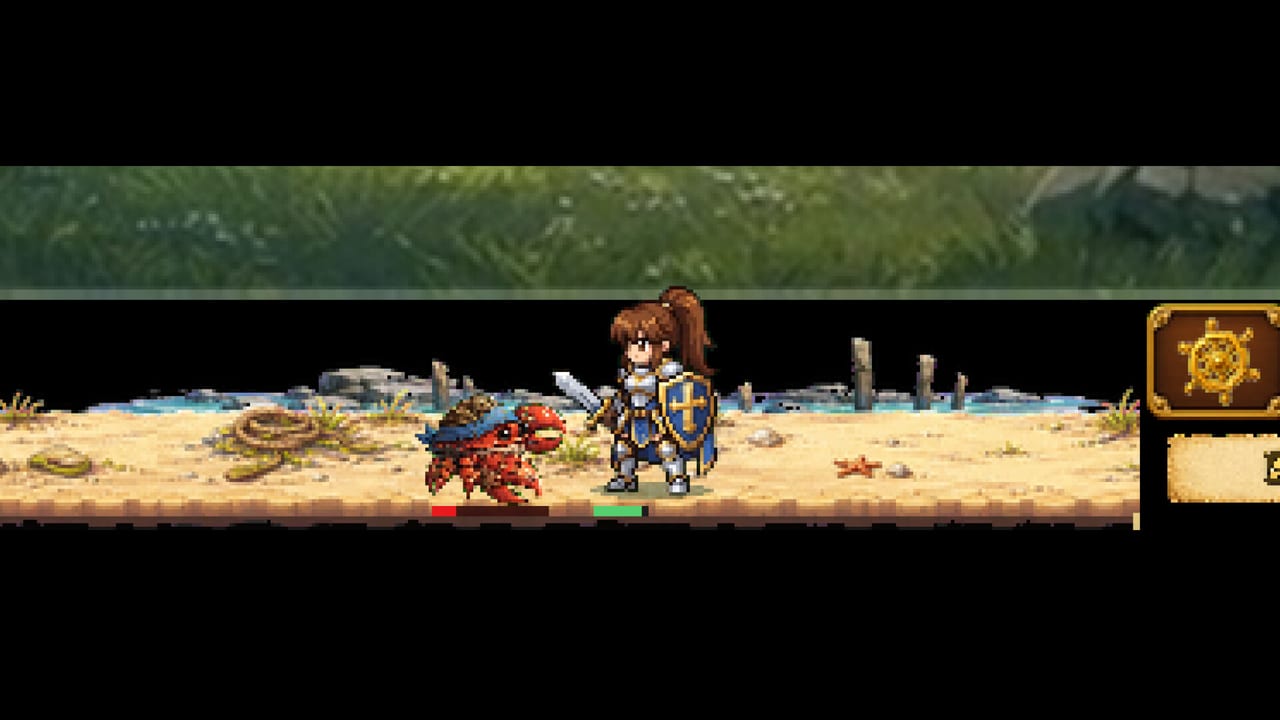
Setup before you blame the build
Task Bar of Ragnalis is designed to live beside your Windows workflow. That only works if the window is readable, the menus are reachable, and your PC actually meets the Steam client’s needs. Launch feedback called out AI-looking UI and missing resize options, so setup mistakes amplify Very Negative first impressions. This hub collects the practical pages that reduce friction before you open How to Play or chase loot under Items.
Jagernaut Games released the free-to-play client on July 30, 2026 (Steam App 4830880). Treat these setup notes as launch-era guidance for Windows desktops, not as a promise that every monitor scale factor is perfectly supported.
What this hub covers
- Controls — mouse, keyboard habits, and menu navigation in a compact RPG client
- Taskbar Setup — placement, visibility, and living with limited resize
- System Requirements — Steam install expectations, disk space, and stability checks
Use them in that order if you are brand new. If combat already feels soft, setup will not add damage—switch to Beat Early Waves and Early Progression after the window is usable.
Why taskbar games need a setup hub
Normal fullscreen RPGs hide bad DPI handling behind big fonts. A taskbar idle RPG puts every icon, tooltip, and class-locked item name into a small strip. Players on 1080p laptops and 4K monitors hit different pain. Some can click everything. Others cannot tell whether a drop belongs to Gunner or a DLC class until they open a larger view. Documenting setup keeps those players from quitting for the wrong reason.
Recommended first-hour checklist
- Confirm Windows install health via System Requirements.
- Launch once in a normal desktop context and map menus with Controls.
- Park the client where you can glance at fights using Taskbar Setup.
- Start the gameplay loop in How to Play and First Look.
- When party slots open, plan three heroes with Party Builds instead of random clicking.
Setup vs review vs DLC
If the question is “should I even bother?”, read Worth Playing and the Honest Review. If the question is “should I pay for Pirate, Overlord, or storage?”, open the DLC hub and DLC Cost Checker. Setup pages stay focused on making the free client usable so those later decisions are fair.
Common setup failures at launch
- Running the game unreadably tiny, then blaming combat for deaths you cannot diagnose
- Closing the client instead of leaving it running, which stops the idle loop
- Ignoring class-locked tooltips because text is too small—see Items once UI is readable
- Mixing this client with Task Bar Hero advice; confirm identity in vs Task Bar Hero
Keep expectations honest
No setup guide can invent a missing resize feature. We explain workarounds, display scaling habits, and when to wait for patches. Pair patience with systems knowledge: nine-copy stacking, random skills, and a party of three still matter more than wallpaper placement once you can see the screen.
Use this hub whenever a friend says “just leave it in the corner” without telling them how. The corner only works if the corner is legible.
Frequently Asked Questions
Quick answers to the most common questions.
What should I configure first?
Verify [System Requirements](/setup/system-requirements/), learn [Controls](/setup/controls/), then place the window with [Taskbar Setup](/setup/taskbar/).
Will setup fix soft Gunner damage?
No. Setup improves readability and stability. Combat walls belong in [Beat Early Waves](/guides/beat-early-waves/) and class guides.
Do I need DLC for setup?
No. Setup applies to the free client. Evaluate paid packs later in the [DLC hub](/dlc/).
Is this the same setup as Task Bar Hero?
No. Different games and clients. Confirm you are on App 4830880 via [vs Task Bar Hero](/review/vs-task-bar-hero/).